Your New Assistant
Welcome to DeskAgent! This page shows you how to interact with your AI assistant and get the most out of it.
The Interface
When you start DeskAgent, you'll see this interface:
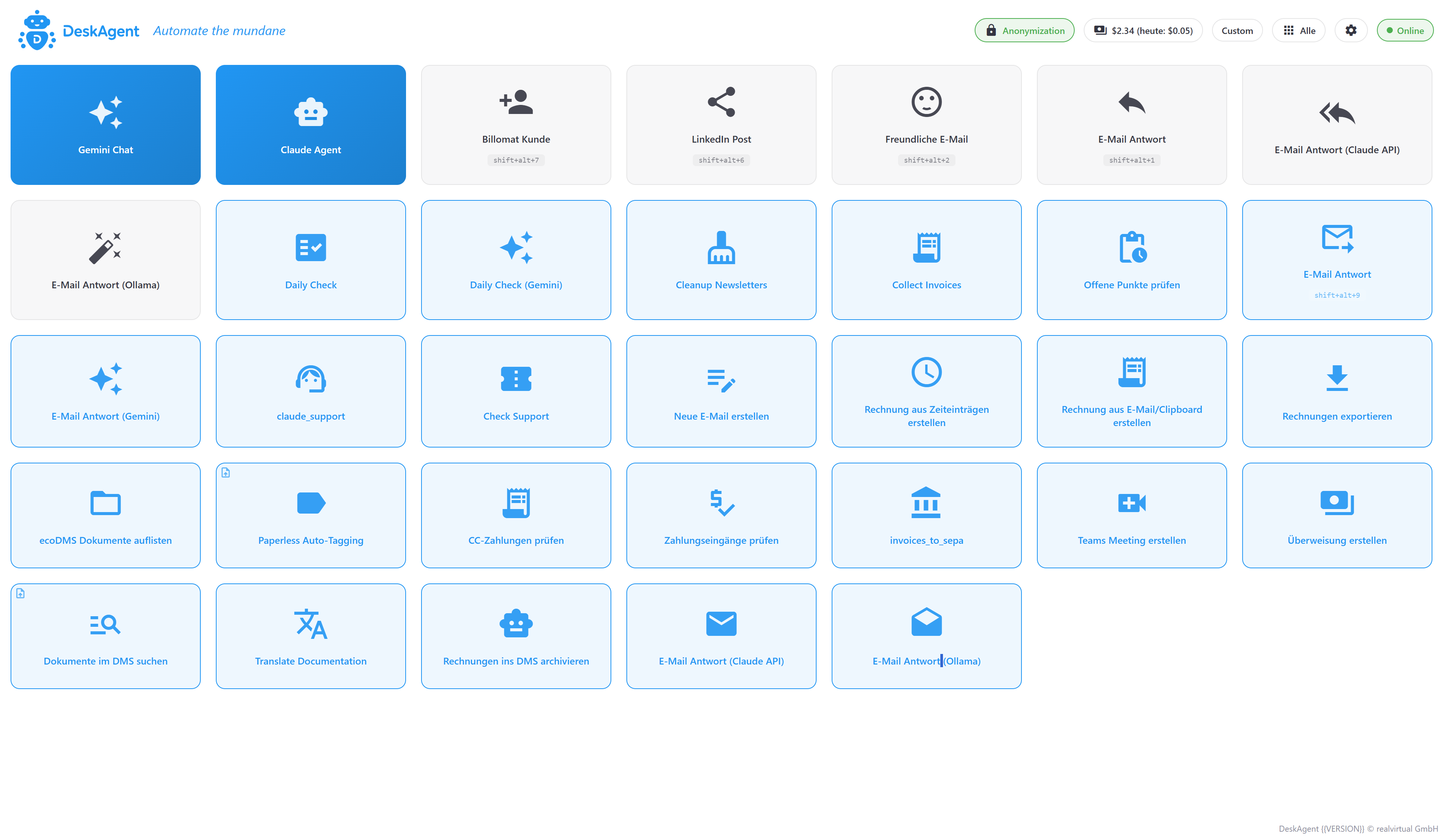
| Area | What It Does |
|---|---|
| Chat Input | Type your requests here - just like messaging a colleague |
| Agent Tiles | One-click workflows for common tasks |
| Settings | Configure AI backends, extensions, and preferences |
| History | View previous conversations and results |
How to Talk to DeskAgent
Just type naturally - like you would text a helpful colleague.
Good Examples
| What You Want | What You Say |
|---|---|
| Check your inbox | "What important emails came in today?" |
| Reply to an email | "Draft a reply to this email" |
| Create an offer | "Create an offer for this customer" |
| Find information | "Search for emails about Project Alpha" |
| Schedule a meeting | "Set up a meeting with Anna for Friday at 2pm" |
Tips for Better Results
Do
- Be specific - "Reply professionally, mentioning our 30-day trial" works better than "Reply"
- Provide context - Select an email in Outlook before asking about it
- Ask follow-ups - "Make it shorter" or "Add a greeting in German"
Avoid
- Vague requests - "Do something with my emails"
- Multiple unrelated tasks - Ask one thing at a time
- Assuming context - Always select or mention what you're working with
Using Agent Tiles
Agent tiles are pre-built workflows that handle common tasks with one click.
Available Agents
| Agent | What It Does |
|---|---|
| Daily Check | Reviews your inbox, flags important emails, suggests actions |
| Reply Email | Drafts a professional response to the selected email |
| Create Offer | Generates a quote based on customer requirements |
| Create Invoice | Creates an invoice from time logs or email requests |
| Check Payments | Matches bank transfers to open invoices |
How to Use
- Click an agent tile - The workflow starts immediately
- Provide input if needed - Some agents ask for files or preferences
- Review the result - DeskAgent shows drafts before sending anything
- Approve or adjust - Edit the result or ask for changes
Working with Outlook
DeskAgent connects directly to Microsoft Outlook on your computer.
Select First, Then Ask
- Open Outlook - Make sure it's running (not just in the tray)
- Click on an email - Single click to select, don't double-click to open
- Ask DeskAgent - "Summarize this email" or "Draft a reply"
Multi-Select
Hold Ctrl and click multiple emails to work with them together:
- "Move all these to the Archive folder"
- "Summarize these emails"
- "Mark all as follow-up"
Reviewing Results
DeskAgent never sends emails or makes changes without your approval.
Email Drafts
When DeskAgent creates an email draft:
- The draft opens in Outlook
- Review the content
- Edit if needed
- Click Send when ready
Offers and Invoices
When DeskAgent creates documents:
- You see a preview in the chat
- Approve to finalize
- Download or send as PDF
Settings
Click the gear icon to access settings:
| Tab | What You Configure |
|---|---|
| API Keys | Your AI provider credentials (Claude, Gemini) |
| License | Activate your trial or full license |
| Extensions | Connect Billomat, UserEcho, and other services |
| Appearance | Theme, language, and display options |
Keyboard Shortcuts
| Shortcut | Action |
|---|---|
| Enter | Send message |
| Shift+Enter | New line in message |
| Ctrl+K | Clear conversation |
| Esc | Cancel current operation |
Next Steps
-
Add Your Knowledge
Teach DeskAgent about your business
-
Try Workflows
Step-by-step guides for common tasks